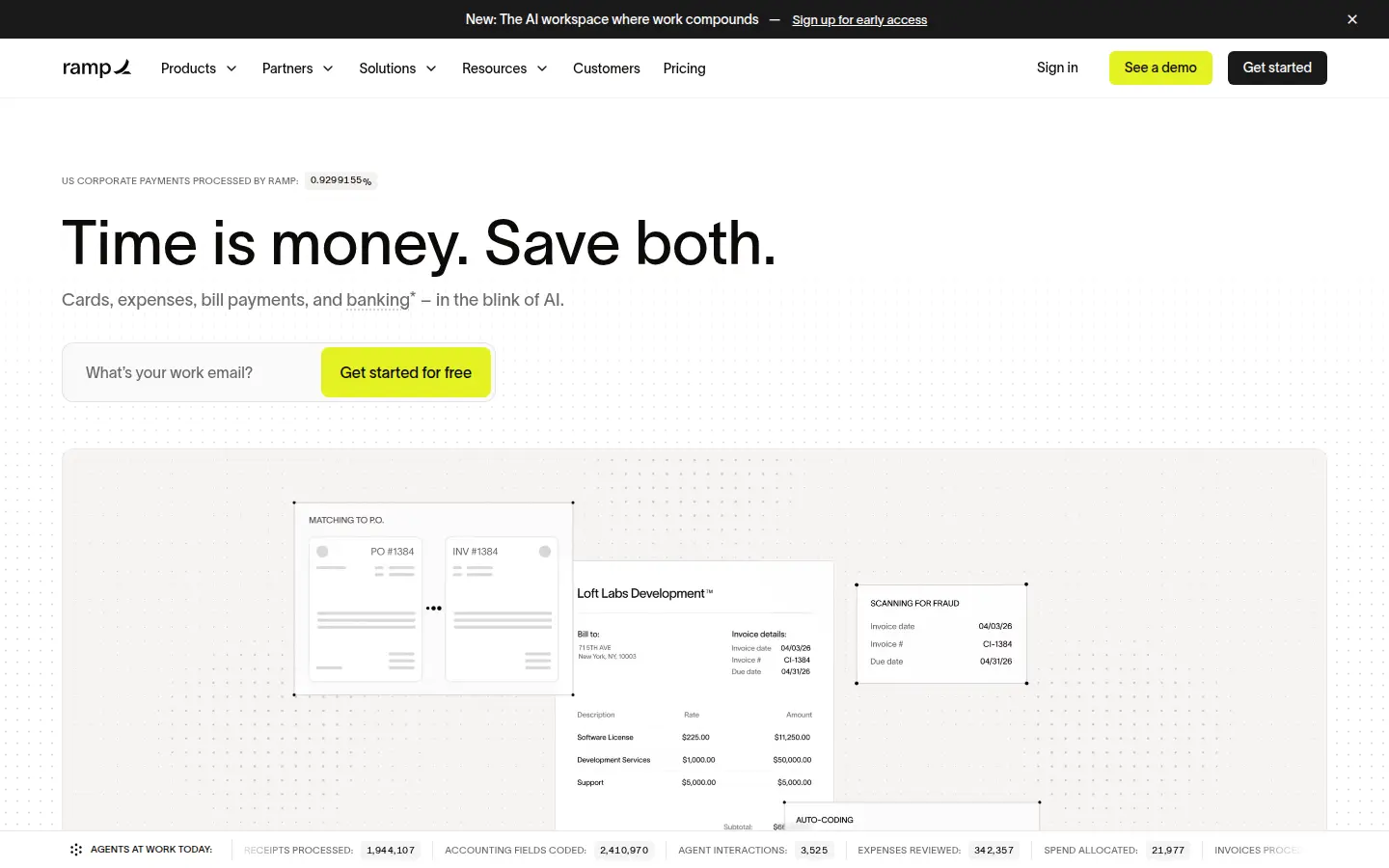
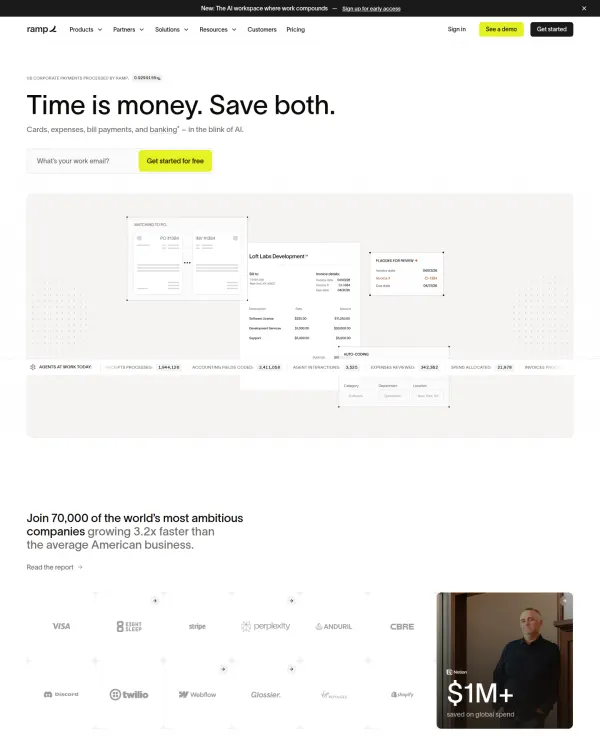
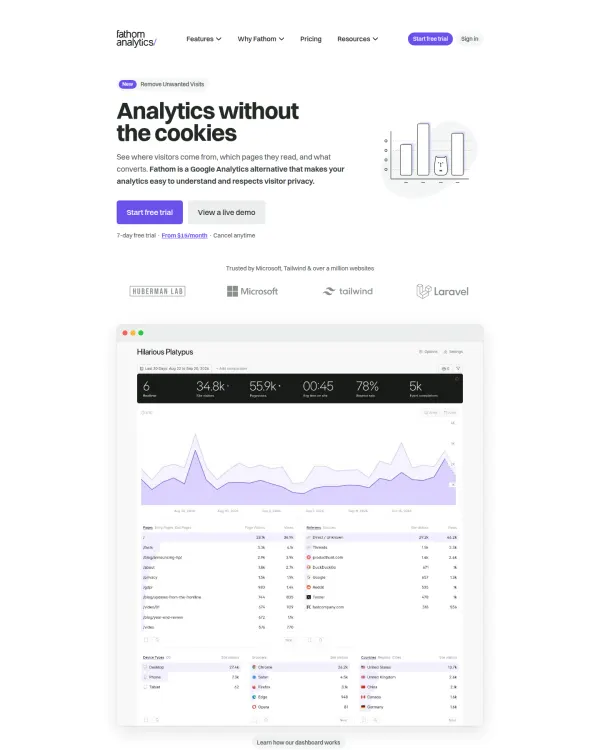
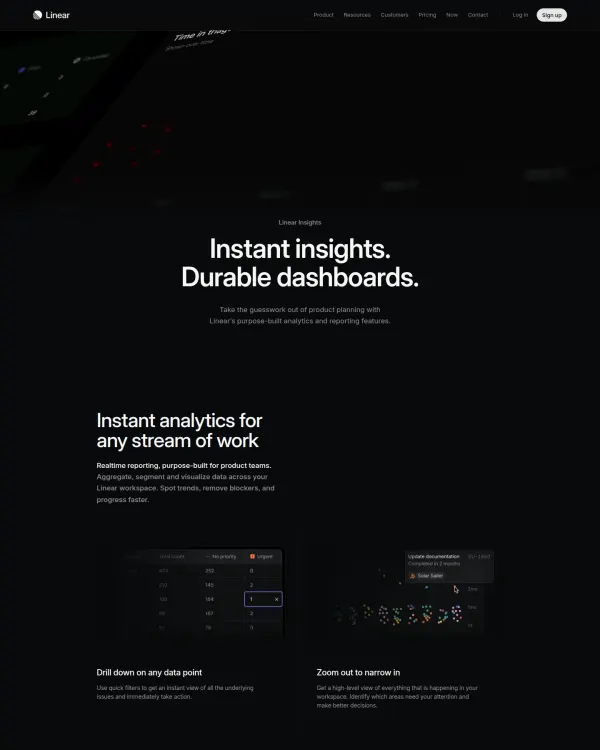
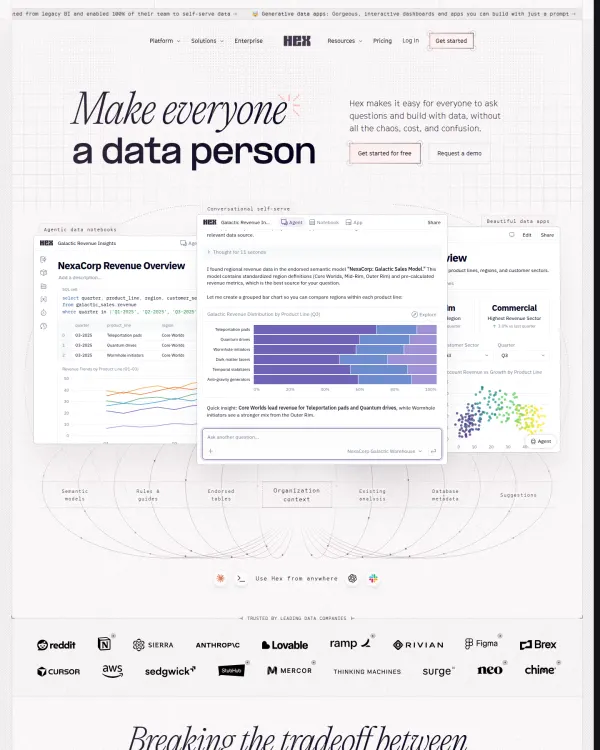
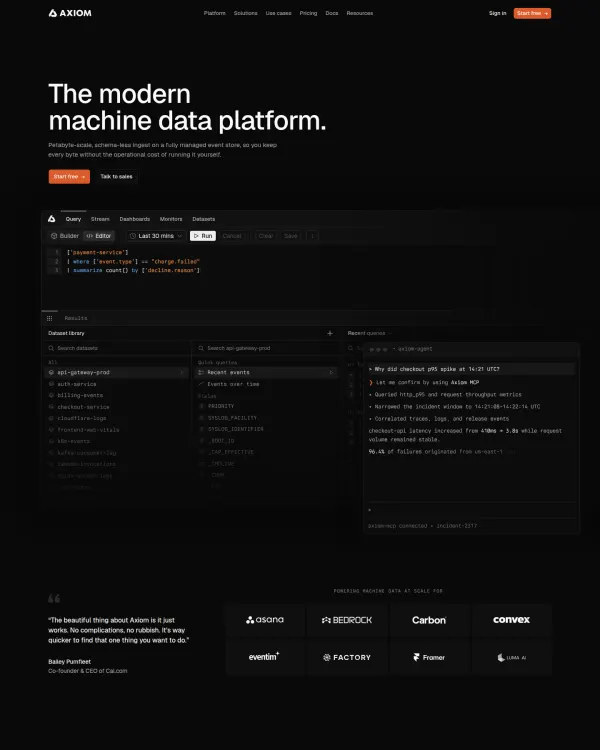
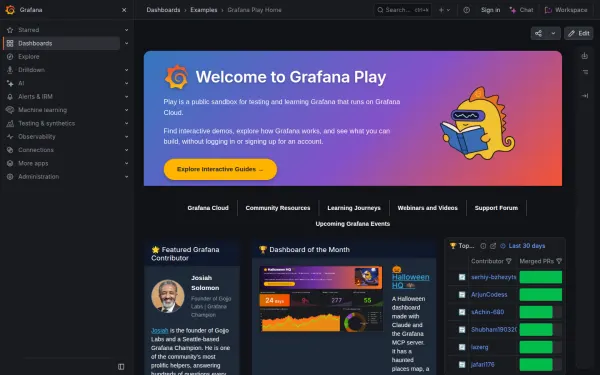
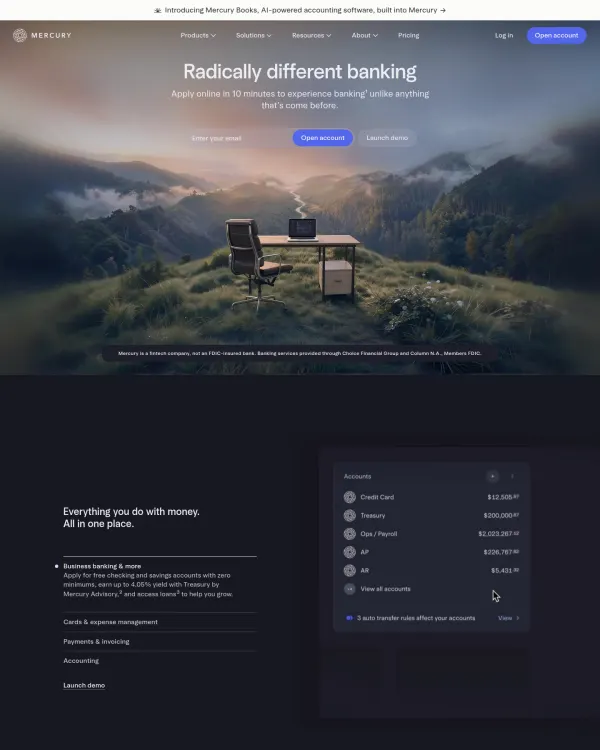
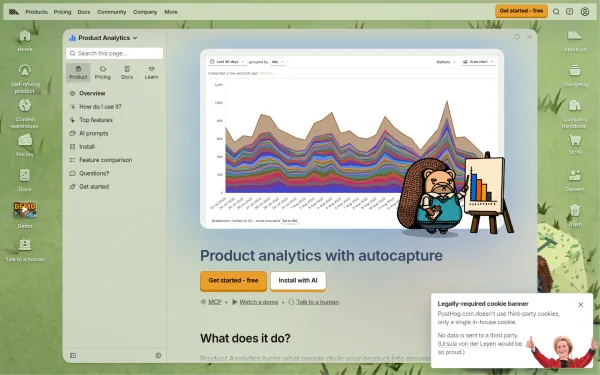
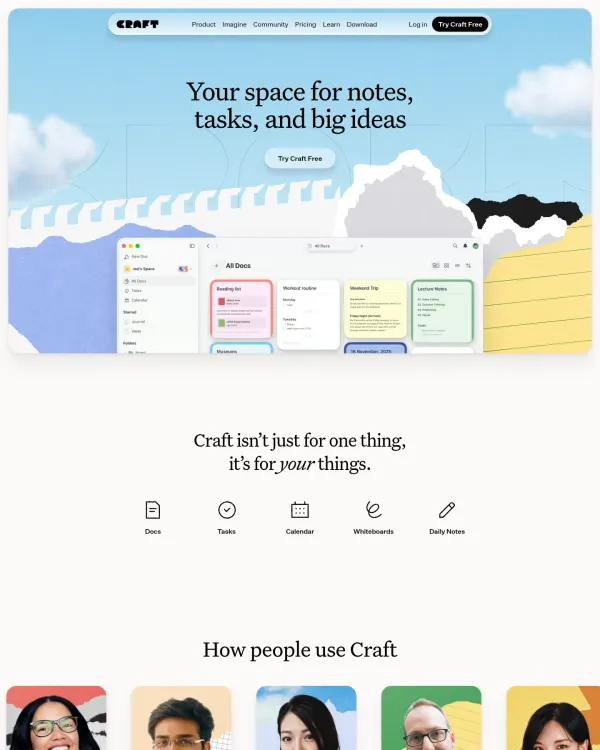
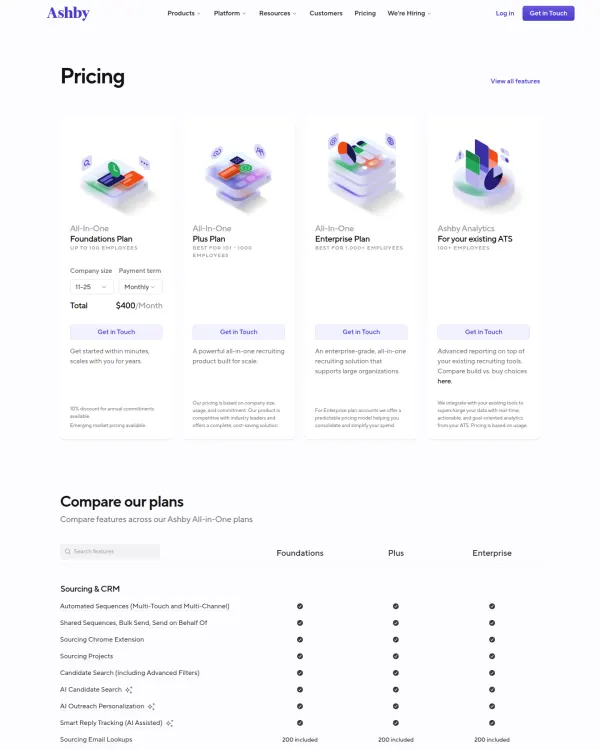
See live work in our dashboard UI examples gallery.
What a dashboard is for
A dashboard answers a question at a glance. How are we doing? What needs attention? What changed?
If a screen cannot answer one of those in a few seconds, it is a report, not a dashboard. Reports are fine, but they need a different layout.
Start by naming the user and the question. A sales lead and a support agent need different dashboards, even with the same data.
Pattern 1, the key numbers on top
Most strong dashboards open with a row of key numbers. Three to five is common. Each shows a label, the value, and a small change or trend.
- The value is the largest text in the tile.
- The label is small and clear.
- The change is shown with a sign and one color for up and another for down.
- Every tile uses the same format.
Numbers are often set in a type with steady digit widths so columns line up.
Pattern 2, a grid that reads in order
Dashboards use a grid. Cards snap to columns of equal width. The eye reads left to right and top to bottom, so the most important cards sit at the top left.
- Use a 12 column grid on wide screens.
- Align card edges.
- Keep gaps the same size everywhere.
- Let cards span two or more columns for larger charts.
Pattern 3, spacing with a base unit
Dense data needs steady space to stay readable. Pick a base unit, often 4 or 8 pixels, and use only its multiples.
- Small gaps inside cards.
- Medium gaps between cards.
- Larger gaps between sections.
This is the spacing scale. DesignPorn shows the base unit for every design, so you can compare dashboards at a glance.
Pattern 4, choose the right chart
Every chart type has a job.
- Line chart. Change over time.
- Bar chart. Compare categories.
- Stacked bar. Parts of a whole across groups.
- Table. Look up exact values.
- Single big number. One value that matters.
Avoid pie charts with many slices. Skip 3D effects and heavy gridlines. Label directly where you can, so readers do not look back and forth at a legend.
Pattern 5, color with meaning
Strong dashboards use few colors, and each means something.
- A neutral base for surfaces and text.
- One accent for the main series and actions.
- Green and red, or similar, for good and bad changes.
- Gray for context and less important data.
Do not rely on color alone. Add a sign, an icon or a label so color blind users still read the meaning. Check contrast between text and background.
You can pull ideas from color palette inspiration to see how products choose their palettes.
Pattern 6, tables that scale
Tables carry much of a dashboard's work.
- Align text left and numbers right.
- Use a header that stays in view while scrolling.
- Offer sort on the columns that matter.
- Keep rows of comfortable height, with an option for compact.
- Show the status with a small label, not just a color.
- Let users hide or reorder columns.
Pattern 7, filters and time ranges
Filters let the user ask their own question. Put them in one place, often at the top.
- A date range picker with presets such as 7 days and 30 days.
- Filters as small chips that show what is active.
- A clear "Reset" action.
- The filter state in the address so people can share a view.
Pattern 8, empty, loading and error states
Good dashboards design the in-between moments.
- Loading. A skeleton of the layout, so nothing jumps.
- Empty. A short line on what appears here and what to do first.
- Error. A clear message and a retry action.
These states show up in real use more often than designers expect.
Pattern 9, navigation
Most SaaS dashboards use a left sidebar for main areas and a top bar for search and account. The sidebar stays narrow, with icons and short labels. The current item is clear. Keep the number of items small. If it grows, group them.
Density without clutter
Dashboards often need to show a lot. Density is fine when structure is clear.
- Group related items inside one card with a short title.
- Use one level of border or shadow, not both.
- Hide secondary detail until the user asks, for example in a drawer or on hover with a tap alternative.
- Remove decoration that does not carry data.
When you compare strong dashboards, notice how much they leave out. The best ones feel calm even when they hold a lot of numbers.
Writing for dashboards
Labels do real work. Use short, plain names such as "New customers" and avoid internal jargon. Show units next to values. Round numbers to the precision the decision needs. Write empty states and tooltips in full sentences. Pick one word for each idea and use it everywhere, so "users" never turns into "members" halfway through.
Light and dark
Many products offer both. Dark themes need care.
- Avoid pure black and pure white. Use deep gray and soft white.
- Lower the saturation of charts on dark.
- Keep contrast high enough for small text.
Mobile and narrow screens
Dashboards are often built for wide screens. Plan the narrow version too.
- Stack cards in one column.
- Put the key numbers first.
- Turn wide tables into lists of rows.
- Keep tap targets large.
How to design a dashboard, step by step
- Name the user and the question they ask.
- List the five numbers that answer it.
- Rank them. The most important goes top left.
- Choose a chart type for each, based on its job.
- Set a 12 column grid and a base spacing unit.
- Pick a neutral base, one accent, and a pair of status colors.
- Set a type scale with steady digits for numbers.
- Design the table, with sort, sticky header and alignment.
- Add filters and a date range in one place.
- Design loading, empty and error states.
- Check contrast and color-blind safety.
- Test the narrow layout.
Study real dashboards
Search "dense analytics dashboard with calm colors" or upload a screenshot of a layout you like. Read the palette, fonts and spacing for each match. See also SaaS website design and UI inspiration for the pages around the product. Try the demo, then see the design inspiration app plans.