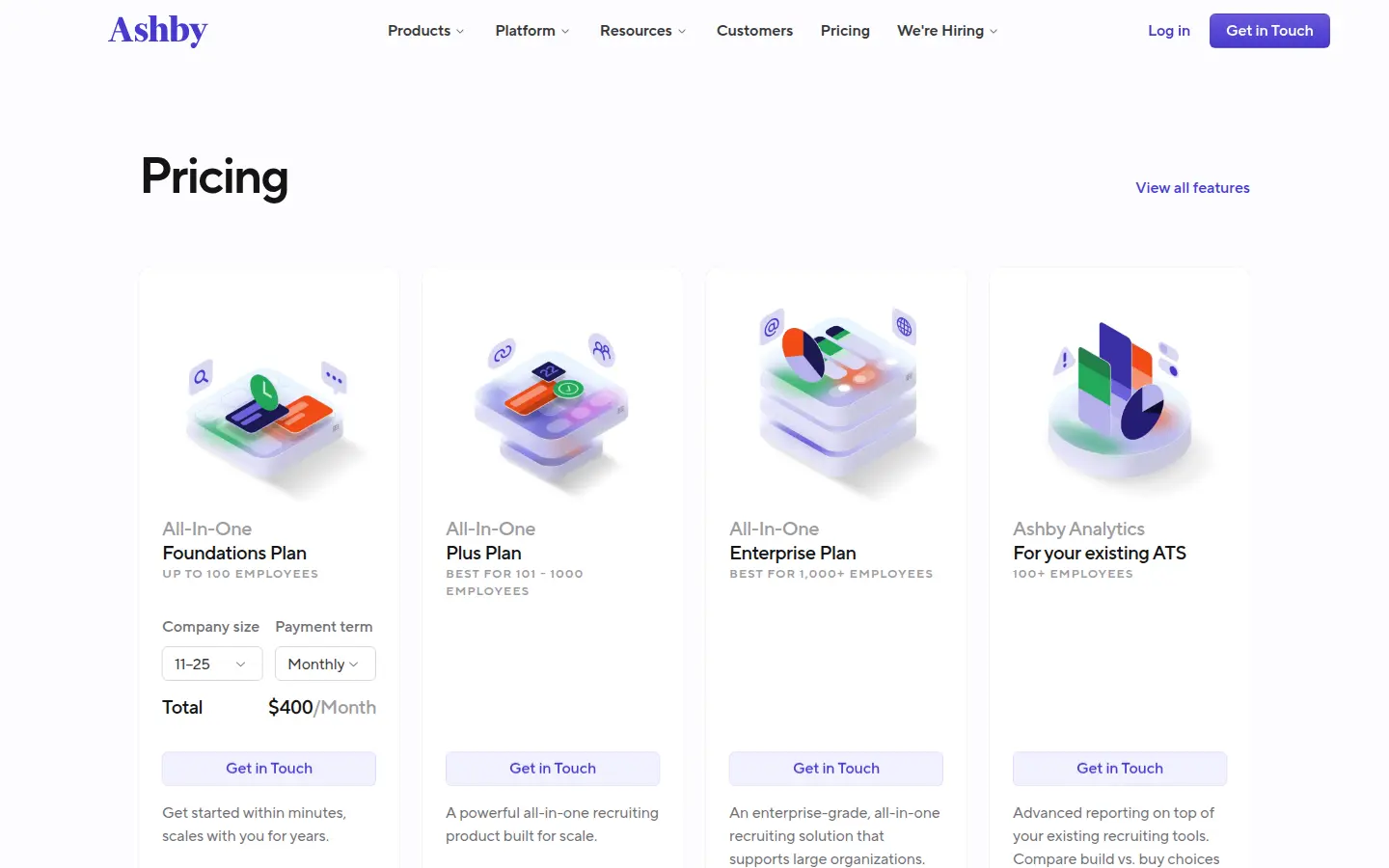
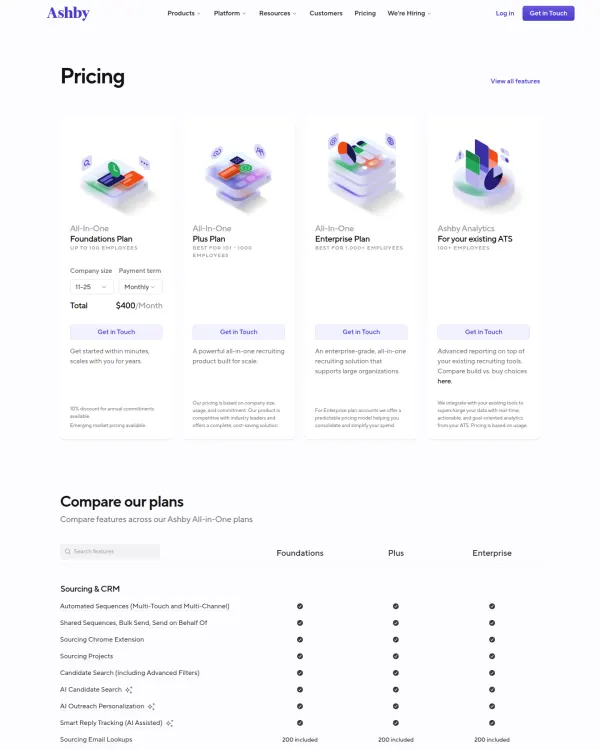
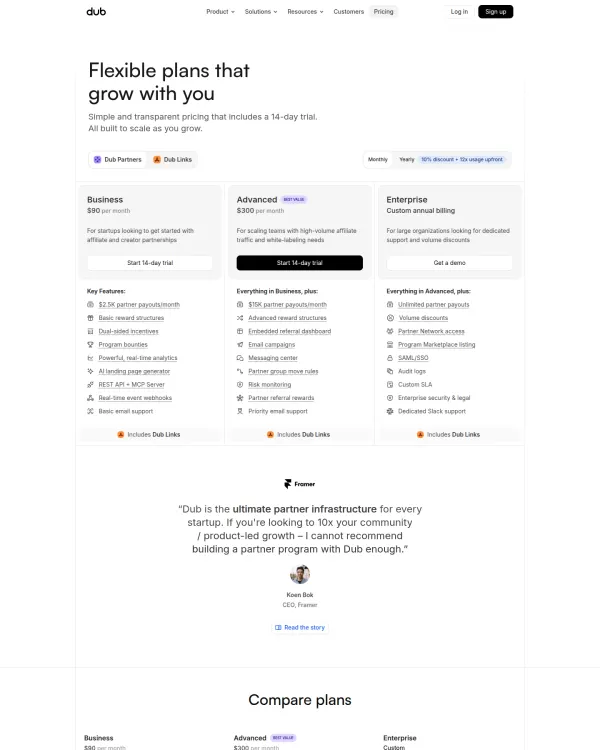
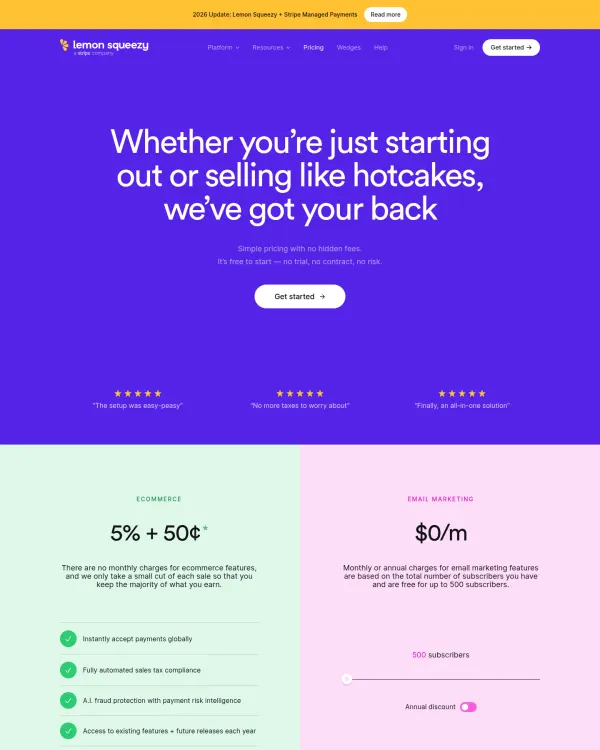
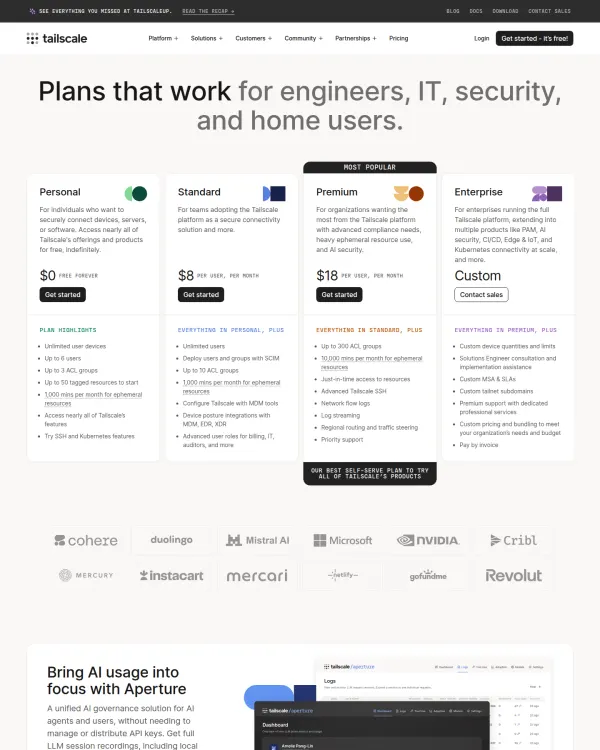
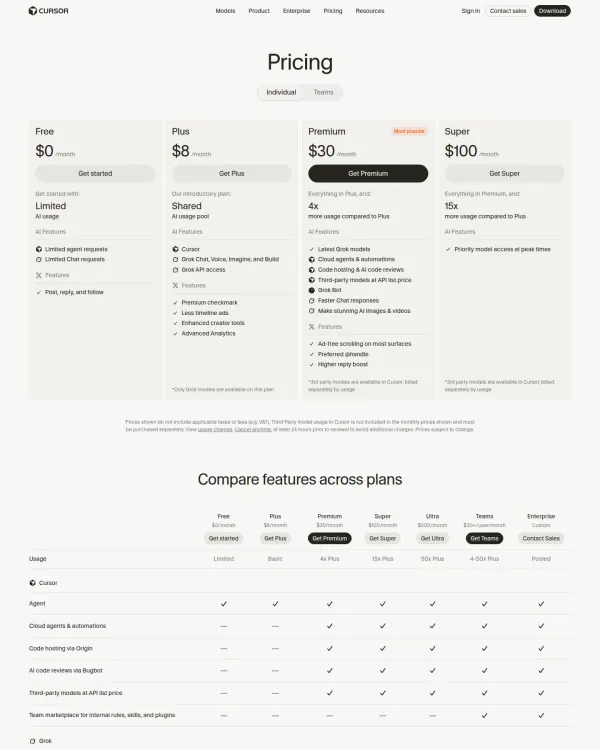
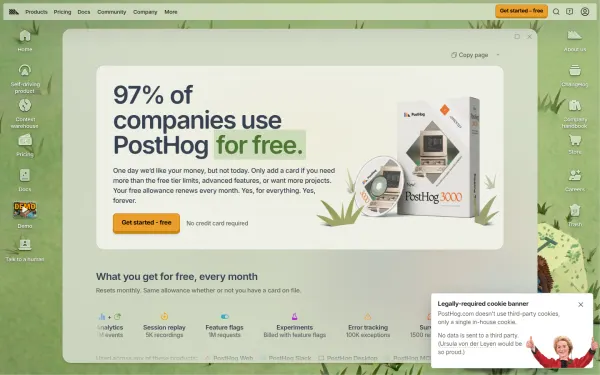
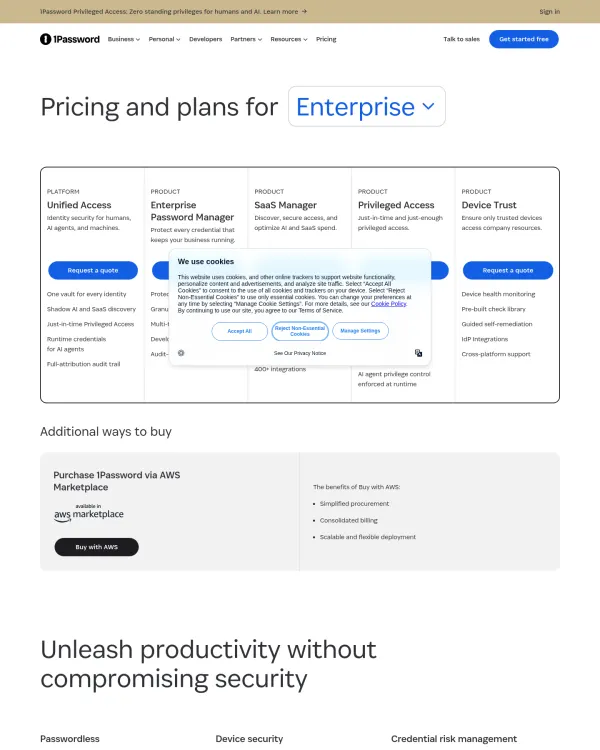
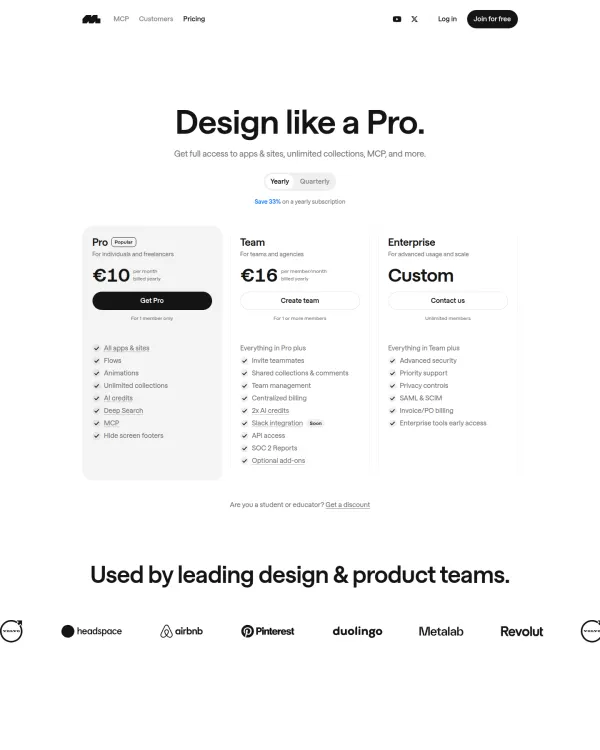
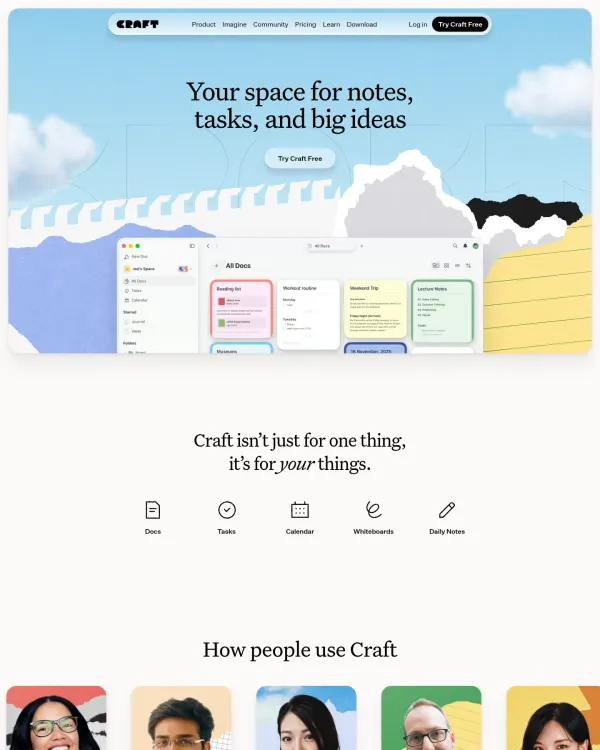
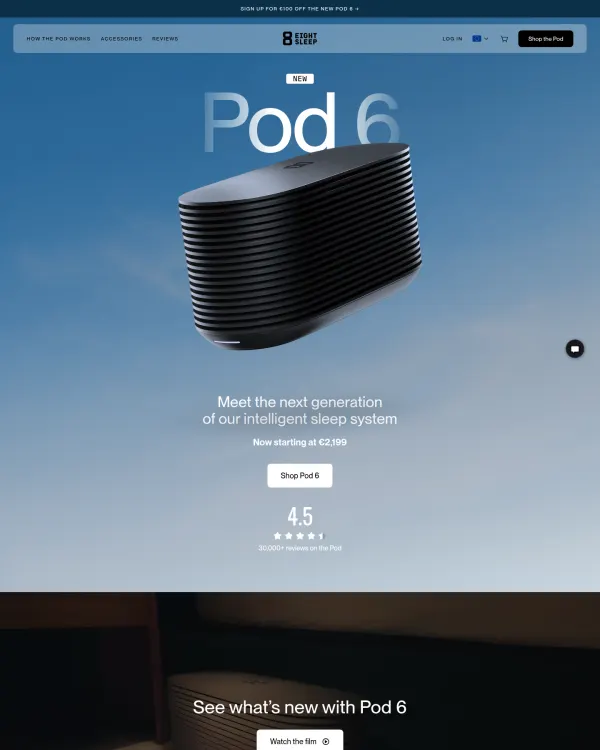
You can see them in real work in our pricing page design gallery.
What a pricing page has to do
A pricing page has one job. It turns "maybe" into "this one." Visitors arrive with a question: what will this cost me, and what do I get?
They also arrive with doubts.
- Is this plan enough for me?
- Will I be surprised by a fee?
- Can I leave if it does not work?
A great page answers all three without making the visitor hunt.
Pattern 1, a small number of plans
Most strong pricing pages show three plans. Two plans can feel thin. Five can feel like homework.
Three works because it lets people sort themselves: a starter plan, a main plan, and a plan for large or special needs. The third often says "Talk to sales" instead of a price.
If you have more than four, group them. Show the main three, and link to a full comparison below.
Pattern 2, one plan stands out
Pick the plan you want most people to choose. Make it the visual lead.
Common ways to do it:
- A label such as "Best for teams."
- A filled button while the others are outlined.
- A slightly taller card or a stronger border.
- The accent color used only on that card.
Do this with one plan only. If every card shouts, none does.
Pattern 3, price that is easy to read
Price is the biggest thing on a card. It sits near the top, set in a large size and a strong weight.
Keep these habits:
- Show the currency and the period, such as "$49 a month."
- Put the billing note in small text near the number, not hidden.
- Use the same number format on every card.
- Do not make visitors do math. If you bill yearly, show the monthly equivalent and the yearly total.
Pattern 4, the billing toggle
A monthly and yearly toggle is now standard. It lets visitors see the discount without leaving the page.
Make the default match what you want. If yearly is the main offer, show yearly first. Show the saving in plain words, such as "Save 50 percent." Make the toggle large enough to tap on a phone.
Pattern 5, a short list of what is included
Each card has a short feature list. Five to eight lines is enough.
- Start with the strongest benefit.
- Use plain verbs.
- Say "Everything in Pro" on the next plan, so people do not re-read.
- Move long lists into a comparison table.
Pattern 6, who it is for
One line under each plan name helps people self-select. "For one designer." "For teams of five." "For security and procurement." This is quicker than reading every feature.
Pattern 7, a comparison table for the details
Below the cards, a table lets careful buyers check the details. Keep the first column sticky on mobile. Group rows under short headings. Use check marks sparingly and add words where a check is vague, such as "5 seats."
Pattern 8, answers near the price
Most doubts about money fit in a short FAQ. Put it under the plans, not on another page.
Good questions to answer:
- How does billing work?
- Can I cancel?
- What happens if I change plans?
- Do you send invoices?
- Is there a refund?
State your actual rules. Honest rules build more trust than a vague promise.
Pattern 9, a clear end of the page
After the FAQ, close with one call to action. Repeat the main plan or the next step. Do not leave the visitor at a dead end.
Color, type and spacing on pricing pages
Pricing pages tend to be calm. Strong pages use mostly neutral surfaces, one accent color, and a clear type scale.
- Color. Neutral background, ink-colored text, one accent for the main button and the highlighted plan.
- Type. A heavier weight for price, a lighter one for descriptions. Two type families at most.
- Spacing. A steady base unit, often 8 pixels. Equal gaps between cards. More space around the price than around the feature list.
On DesignPorn, each design opens with its palette, fonts and spacing base unit, so you can check this on real pages. Browse SaaS website design to see how pricing fits the rest of a site.
Words that help and words that hurt
Plain copy sells better than clever copy on a pricing page. The visitor is comparing, not browsing.
- Name plans by who they are for, such as Pro and Team, not by cute labels.
- Write "seats" or "users" and stay with one.
- Say what a limit is. "5 seats" beats "generous seats."
- Keep button labels short, such as "Get started."
- Put the cancel rule in words. "Cancel anytime, access until the period ends" answers a worry in one line.
Read the page aloud. If a line needs a second read, rewrite it.
Pricing on small screens
On a phone, cards stack in one column. Put the plan you want people to pick first, or keep the same order and make it stand out with a label. Keep the toggle at the top. Make the comparison table scroll sideways with a sticky first column, or turn it into an accordion per plan.
Common mistakes
- Hiding the price behind a form on every plan.
- Using a "Contact us" button where a self-serve plan would work.
- Making the free or cheapest option the most colorful card.
- Using long feature names that wrap.
- Making the toggle look like a decorative switch.
- Hiding fees in small print.
How to design your pricing page, step by step
- Write the one-sentence promise of each plan.
- Choose three plans, and name who each is for.
- Pick the plan you want most people to choose.
- Set the price large, with the period and the billing note.
- Add a monthly and yearly toggle, and set the default.
- Write five to eight feature lines per plan.
- Style one plan as the lead, with one accent.
- Add a comparison table for the details.
- Add an FAQ of five to eight real questions.
- Close with one call to action.
- Test on a 390 pixel wide phone screen.
- Check that nothing important sits only on hover.
Where to find pricing pages to study
Search "calm pricing page with yearly toggle" or upload a screenshot of one you like. See how others handle plans, and read the breakdown of each. Our landing page examples show how the page above the pricing section sets up the sale. Our guide to dashboard UI examples covers the product side.
Try the demo, then see our design inspiration app plans.